How to find your session file
Claude Code and Codex save every session on your computer as a .jsonl file. You upload that one file. The quickest way is a command that copies your latest session to the desktop.
Claude Code
-
Copy your latest session to the desktop
Open a terminal and run the line for your system. It finds the newest session in any project and copies it as
my-session.jsonl.macOS and Linux cp "$(ls -t ~/.claude/projects/*/*.jsonl | head -1)" ~/Desktop/my-session.jsonl
Windows, in PowerShell Get-ChildItem "$env:USERPROFILE\.claude\projects\*\*.jsonl" | Sort-Object LastWriteTime -Descending | Select-Object -First 1 | Copy-Item -Destination "$env:USERPROFILE\Desktop\my-session.jsonl"
-
Or pick a specific session
Sessions are in
~/.claude/projects/, one folder per project. The folder is named after the project path with dashes. Each session is one file named with a long id. List them by date to find yours:macOS and Linux ls -lt ~/.claude/projects/*/*.jsonl | head
-rw-r--r--  1 anna  staff  2.1M Nov 14 17:42 /Users/anna/.claude/projects/-Users-anna-shop/4f0c2a9e-7d1b-4c1e-9a55-0b6f3e2d8c11.jsonl
-rw-r--r--  1 anna  staff  640K Nov 13 10:05 /Users/anna/.claude/projects/-Users-anna-shop/b81d77c2-0a4e-4f6b-8d0e-5a2c9e7f1b34.jsonl
-rw-r--r--  1 anna  staff  1.4M Nov 11 15:20 /Users/anna/.claude/projects/-Users-anna-blog/9c3e51aa-62f0-4b7d-a1c8-7e4d2f6b0a95.jsonl
Example output. The newest session is on top. In a file dialog these folders are hidden. On a Mac, press Cmd + Shift + G and paste
~/.claude/projects. On Linux, press Ctrl + H. On Windows, paste%USERPROFILE%\.claude\projectsinto the address bar.
Codex
-
Copy your latest session to the desktop
macOS and Linux cp "$(ls -t ~/.codex/sessions/*/*/*/rollout-*.jsonl | head -1)" ~/Desktop/my-session.jsonl
Windows, in PowerShell Get-ChildItem "$env:USERPROFILE\.codex\sessions\*\*\*\rollout-*.jsonl" | Sort-Object LastWriteTime -Descending | Select-Object -First 1 | Copy-Item -Destination "$env:USERPROFILE\Desktop\my-session.jsonl"
-
Or pick a specific session
Sessions are in
~/.codex/sessions/, in folders by year, month and day. Each session is one file that starts withrollout-and carries its start time in the name.If the session started subagents, each subagent has its own rollout file with a later time. Pick the one with the time you started the session.
Upload it
-
Drop the file on the start page
Drag
my-session.jsonlfrom the desktop onto the upload area, or click "Choose files". The file name appears under the area. Tick the box and click "Create my report".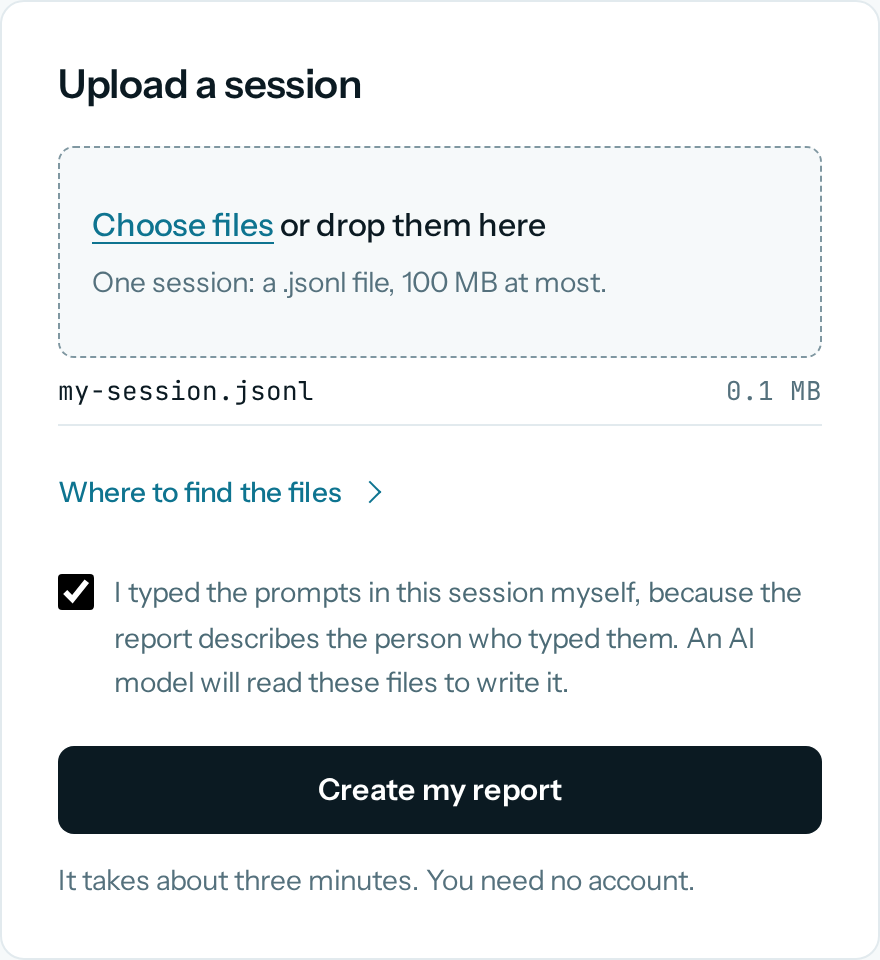
-
Wait about three minutes
The page shows the steps and opens the report by itself. Upload one session at a time. Files up to 100 MB work.
If something does not work
- The command finds nothing
- You may have moved the data folder. If you set
CLAUDE_CONFIG_DIRorCODEX_HOME, look there instead. - "Not a Claude Code or Codex session"
- The file must be the
.jsonltranscript from the folders above. An exported chat or a copied text does not work. - "We could not read this session"
- The session has no message that you typed yourself, for example a session started by a script.
- Secrets in the session
- Keys and passwords we recognize are removed before the model reads anything. If you pasted a secret in a form we might not recognize, pick another session.